
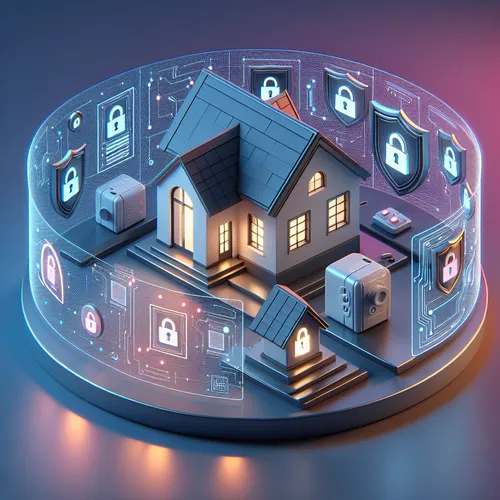
Setting Up a Secure Zero Trust Network at Home
With cyber threats evolving rapidly, traditional home network defenses are often insufficient. A Zero Trust security model assumes no device or user is trusted by default, even inside the network perimeter. Instead, verification is required continuously, minimizing attack surfaces.
Prerequisites
- A home router that supports custom firmware or advanced configuration (e.g., OpenWrt, pfSense).
- Devices capable of running VPN clients or endpoint security software.
- Basic networking knowledge, including IP addressing and subnetting.
- Patience for configuration and monitoring.
What Is Zero Trust Networking?
Zero Trust is a security approach based on the principle of “never trust, always verify.” Every device, user, and connection must be authenticated and authorized before access is granted. This contrasts with traditional models that implicitly trust devices inside a network.
Core Components:
- Network Segmentation: Dividing your network into smaller, isolated segments.
- Least Privilege Access: Users and devices get only the access they absolutely need.
- Continuous Monitoring: Regularly inspecting devices and traffic for anomalies.
- Strong Authentication: Use multifactor authentication (MFA) wherever possible.
Step-by-Step Setup Guide
1. Evaluate and Upgrade Your Router
Check if your router supports advanced firewall rules, VLANs, and VPN setups. Popular options include flashing a router with OpenWrt (Official site) or deploying pfSense on a dedicated machine.
2. Segment Your Network
- Create separate VLANs for different device categories: smart home devices, computers, guests.
- Configure firewall rules to limit traffic between VLANs according to trust levels.
3. Implement Strong Authentication
- Enable WPA3 encryption on Wi-Fi.
- Set unique passwords for each VLAN.
- Use multi-factor authentication on devices and services wherever supported.
4. Deploy a VPN for Remote Access
Configure a VPN gateway in your home network to allow secure remote access. This prevents exposure of internal services directly over the internet. pfSense offers robust VPN options.
5. Monitor Network Traffic
Use tools like Wireshark for detailed traffic analysis or install lightweight network monitoring software on your router to detect suspicious activity.
Troubleshooting Tips
- Devices Cannot Communicate: Verify firewall rules and VLAN configurations. Make sure allowed traffic includes required protocols.
- Slow Internet Speeds: Check if VPN or firewall processing is causing bottlenecks. Upgrade hardware if necessary.
- Authentication Fails: Ensure all credentials, certificates, and MFA devices are correctly configured.
Summary Checklist
- Evaluate router capabilities and upgrade firmware if needed.
- Define and implement network segmentation via VLANs.
- Apply strong authentication and encryption methods.
- Set up VPN for secure remote connections.
- Continuously monitor network activity for anomalies.
For additional security insights, see our detailed guide How to Secure Your Home Network with Zero Trust.
About the Author










